Passkeys Explained: How Passwordless Sign-In Actually Works

Passwords have asked us to solve the same impossible problem for decades: create a secret that is hard for criminals to guess, easy for us to remember, and different for every account. Password managers help, but the underlying bargain is still fragile. A secret that can be typed can also be stolen, copied, or entered on the wrong website.
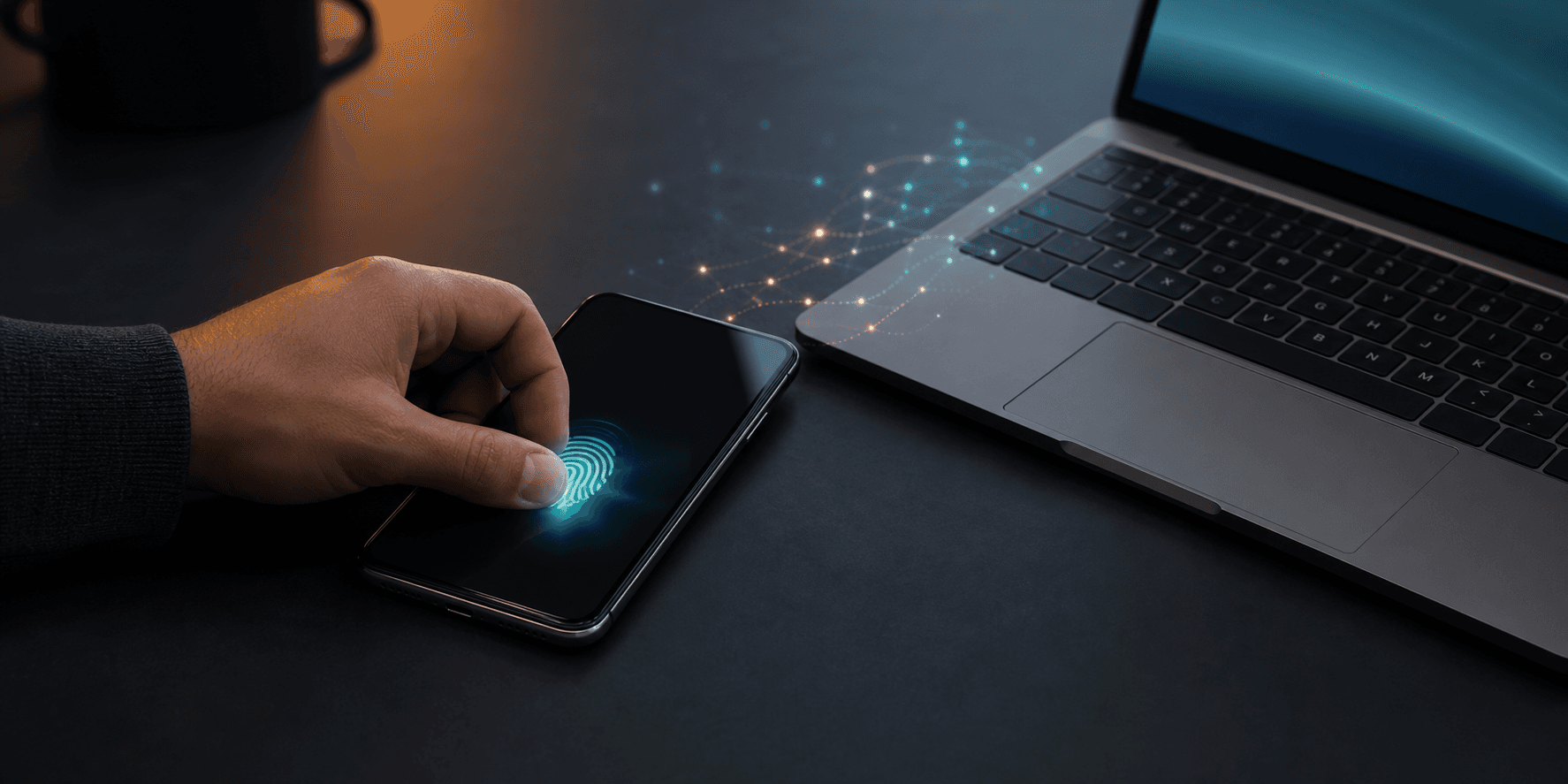
Passkeys change that bargain. Instead of proving who you are by sending a shared secret, your device proves that it holds a unique cryptographic key. You usually approve the sign-in with the same fingerprint, face scan, PIN, or pattern used to unlock the device.
That makes passkeys feel simple. The security underneath them is more interesting.
What a passkey actually is
A passkey is a digital credential created for one account on one website or app. It consists of two mathematically related keys:
- A public key is stored by the website.
- A private key is protected by your device or passkey provider.
The public key cannot be used to calculate the private key. It can only verify proof created by the matching private key. The website therefore does not need to keep a reusable secret that you must send back later.
This is public key cryptography, the same broad family of ideas behind many secure internet systems. It is separate from the race to develop security for a future with powerful quantum computers, but the core lesson is similar: good authentication depends on what an attacker cannot copy.
What happens when you create one
When a website offers to create a passkey, your phone, computer, password manager, or hardware security key generates a new key pair. The website receives the public key and associates it with your account. The private key stays under the control of the passkey provider.
Your device asks for its normal unlock check before creating the credential. A fingerprint or face scan is not sent to the website. The biometric check happens locally and only tells the device that it may use the private key.
The result is also specific to that website. A passkey created for one domain is not a master key for every account, even if the same device stores many passkeys.

What happens during sign-in
The process can be reduced to four steps:
- The website sends your device a fresh, unpredictable challenge.
- Your device confirms that the request belongs to the correct website.
- You unlock the passkey with your device's approved method.
- The private key signs the challenge, and the website checks that signature with its public key.
The private key itself is not sent. The signed response is useful for that sign-in attempt, but it is not a reusable password that someone can replay later.
This model fits naturally with zero trust security. Access is granted after a specific cryptographic check, not because a person knows a secret or happens to be using a familiar network.
Why passkeys resist phishing
Traditional phishing succeeds by making a fake login page look convincing. If you type a password into that page, the attacker can capture it and quickly try it on the real service. One-time codes can also be relayed in real time.
A passkey is tied to the website for which it was created. A lookalike domain cannot ask the browser or operating system to use the real site's credential. There is nothing useful for you to type into the fake form, and the attacker does not receive the private key.
Passkeys also reduce the damage from a website database breach. An attacker who steals a table of public keys does not obtain credentials that can sign in. That is very different from stolen password hashes, which may be cracked offline when passwords are weak or reused.
Passkeys do not make an account invincible. Malware running with deep access to an unlocked device, a compromised recovery process, or a poorly designed fallback login can still create risk. They remove major attack paths rather than every possible one.
Synced passkeys and device bound passkeys
Not every passkey is stored in the same way.
Synced passkeys are kept by a credential manager and made available across a person's approved devices. Syncing is designed to be end-to-end encrypted. It makes replacing a phone or moving between a laptop and tablet much less painful, though the security of the credential manager account becomes important.
Device bound passkeys stay on one device, often a hardware security key or a managed work device. They can offer stronger control for sensitive environments, but losing the device can mean losing that sign-in route unless another credential was registered.
The distinction reflects a familiar tension in the evolution of cloud computing: synchronized services improve convenience and recovery, while local control can reduce reliance on a provider. Neither choice is automatically right for every account.
Using a passkey on another device
If a passkey is already synced to the credential manager on a new device, it may appear automatically after you securely sign in to that provider.
You can also use a nearby phone to approve a sign-in on a computer that does not hold the passkey. The computer may display a QR code, which you scan with the phone before confirming with the phone's unlock method. Proximity checks help ensure the devices are physically near each other.

This flexibility matters, but support and wording still vary between operating systems, browsers, credential managers, and websites. A button labeled "use another device" may lead to the passkey flow even when the word itself is not prominent.
The weak point can move to recovery
Removing a password from everyday sign-in does not automatically remove it from account recovery. Some services still let users fall back to a password, email link, text message, or support request. If that route is easy to exploit, the passkey protects only the front door while a weaker side door remains open.
Recovery also creates an accessibility and inclusion challenge. People may share devices, replace phones without a smooth migration path, or lack reliable access to modern hardware. Those concerns connect to the wider digital divide around access and participation. A secure system still needs recovery options that real people can complete.
Before depending on a passkey for an important account, check how the service handles a lost device, a lost credential manager account, and emergency access.
A practical passkey checklist
Use passkeys when a trusted service offers them, but set them up deliberately:
- Create the passkey while signed in to the correct account and domain.
- Protect your device and credential manager with a strong PIN or passcode.
- Keep recovery email addresses, phone numbers, and recovery codes current.
- Register a second passkey or hardware security key for critical accounts when supported.
- Review saved passkeys and remove credentials linked to lost, sold, or shared devices.
- Avoid storing personal passkeys directly on public or untrusted computers.
- Check whether an old password remains active, then strengthen or remove it if the service allows.
Passkeys are not merely shorter passwords. They replace a reusable secret with a site specific cryptographic proof. That shift makes common phishing attacks much harder, limits what a breached website can expose, and often makes sign-in faster.
The experience will keep evolving, especially around portability and recovery. The central idea is already sound: your device should prove that you hold the right credential without asking you to reveal it.